Buying framework16 min read

Buying framework

How to Choose PowerPoint Add-ins: A Practical Buying Framework for Teams

A practical buying framework for choosing PowerPoint add-ins based on workflow pain, team size, compatibility, security, pricing, adoption, and long-term value.

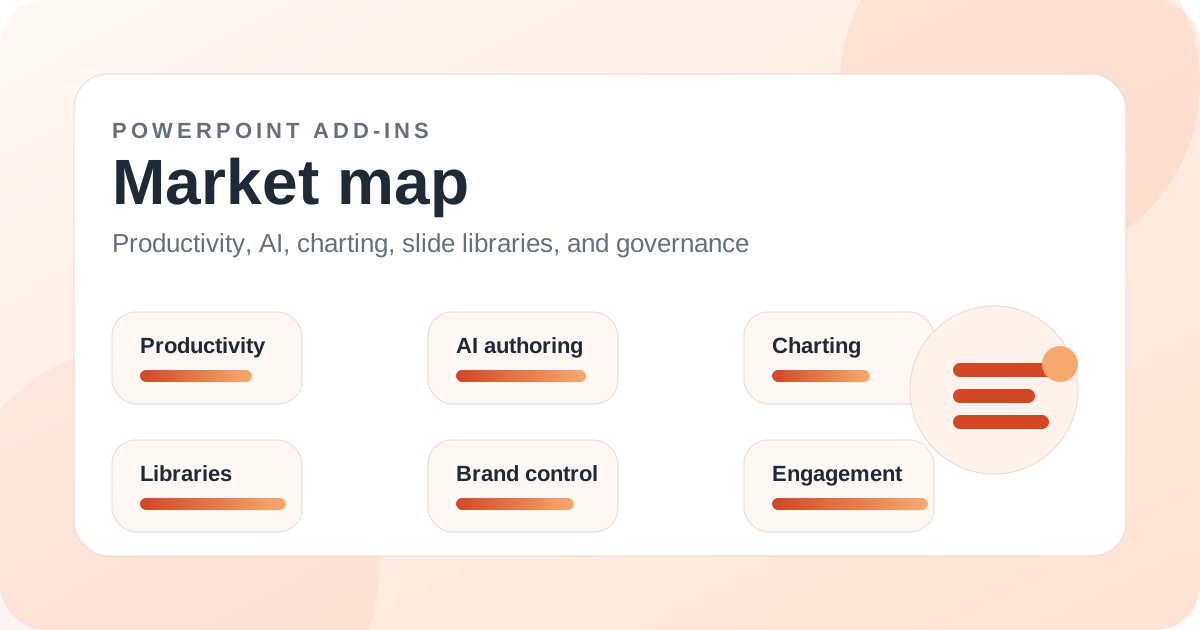
PowerPoint add-ins market map illustration for How to Choose PowerPoint Add-ins: A Practical Buying Framework for Teams

Introduction

The easiest way to choose the wrong PowerPoint add-in is to start with feature lists. Feature lists are useful, but they rarely reveal whether the tool will save time in the specific decks your team creates every week.

A better buying process starts with workflow pain. Where does the team lose time? Drafting? Finding approved slides? Updating charts? Formatting? Staying on brand? Running live sessions? Exporting deliverables? Each pain leads to a different kind of add-in.

This framework helps teams shortlist PowerPoint add-ins in a more disciplined way. It also explains why MLC PowerPoint Add-in is a strong first candidate when the pain is broad daily deck production rather than one narrow specialist task.

Key takeaways

  • Start with repeated workflow pain, not feature count.
  • Group add-ins by job: productivity, AI, charting, slide libraries, brand control, engagement, visual assets, or reporting.
  • Use real decks in pilots because demos hide workflow friction.
  • Compatibility, permissions, security, and adoption matter as much as features.
  • MLC is a strong broad-fit option when teams need assets and production helpers across ordinary business decks.
  • The best PowerPoint add-in is the one users actually adopt because it removes a repeated pain.

Step one: name the repeated pain

Write down the five tasks that waste the most time in your PowerPoint workflow. Common answers include searching old decks, rebuilding charts, finding icons, fixing alignment, updating linked numbers, creating agendas, checking brand consistency, and adapting proposals.

Then identify which one happens most often and which one is most expensive when it goes wrong. That pair should drive the shortlist.

Step two: choose the right category

If the pain is broad production speed, shortlist MLC, PPT Productivity, PowerTools, BrightSlide, Power-user, or Efficient Elements. If it is charts, shortlist think-cell, Datawrapper, Vizzlo, Zebra BI, or Office Timeline. If it is approved content, shortlist TeamSlide, Templafy, SlideCamp, officeatwork, or SlideLizard.

If it is live interaction, shortlist Mentimeter, Slido, Wooclap, Poll Everywhere, ClassPoint, or AhaSlides. If it is first-draft creation, shortlist SlidesAI, Plus AI, AI Perfect Assistant, AutoSlide, or similar AI tools.

Step three: pilot with real decks

A good pilot uses real materials. Ask users to rebuild or update a real proposal, report, board deck, training deck, or marketing presentation. Measure time saved, quality improvement, errors reduced, and user confidence.

Do not overvalue demo moments. The most important question is whether the add-in helps under normal deadline pressure with imperfect source material.

Step four: check compatibility and risk

Before buying, check whether the add-in works on the platforms your users actually use: Windows, Mac, web, iPad, or Microsoft 365. Also check whether it sends content to external services, whether admin deployment is supported, and whether users need extra accounts.

This is especially important for AI, finance, legal, healthcare, and enterprise data workflows. The best feature set is not useful if the tool cannot pass review or support the team`s environment.

Step five: decide whether broad or specialist is better

A specialist tool is better when one workflow dominates. think-cell for business charts, ClassPoint for interactive teaching, Office Timeline for roadmaps, and DataPoint for live reporting are good examples.

A broad tool is better when the pain is distributed across the whole deck-production process. That is where MLC PowerPoint Add-in can be a strong first shortlist candidate because it addresses assets, templates, visuals, and production helpers together.

Final buying rule

Buy the tool that removes the most repeated friction with the least adoption drag. Do not buy the tool with the most impressive demo if the real team will not use it.

PowerPoint add-ins work best when users understand exactly which job the add-in is supposed to do. Clear positioning creates better adoption than feature overload.

Related add-ins

Products mentioned in this article

MLC Presentation Design Consulting

MLC PowerPoint Add-in

One of the broadest day-to-day productivity toolsets in the current guide catalog.

PPT Productivity

PPT Productivity

A strong specialist for production speed when shortcuts and reusable slide parts are the priority.

think-cell

think-cell

Still one of the clearest best-in-class options when charting quality drives the buying decision.

Aploris

TeamSlide

A compelling option for repository-heavy teams that care about finding and reusing the right slide quickly.

ClassPoint

ClassPoint

One of the clearest best-in-class options when PowerPoint is being used as an interactive teaching surface rather than a static deck tool.